
Trades marketing
Google review link: how to get yours and share it
The quick answer
To get your Google review link, do this on a computer. Go to your Business Profile, select Read Reviews, then Get more reviews. Select Copy to copy the link. To save the QR code, right-click it and choose Save image as. Google says review QR codes can currently only be generated on a computer browser.
On this page
Key takeaways
- Your Google review link comes from your own Business Profile: Read Reviews, then Get more reviews, then Copy.
- Review QR codes can currently only be generated on a computer browser, not on mobile devices.
- Customers must be signed into a Google Account to leave a review. A non-Gmail email address works.
- Google suggests sharing the link on receipts, in thank-you emails, at the end of a chat and as a printed QR code in your store.
- Offering rewards for reviews or sending the link only to customers you expect to be happy breaks Google's rules.
A Google review link makes it easier for customers to leave a review on your Business Profile. Google gives you the link and a matching QR code inside your Business Profile. It takes three steps on a computer.
How do I get my Google review link?
Do all of this on a computer, signed in with the Google account that manages the profile. Then follow Google's steps:
- Go to your Business Profile.1 If you haven't opened it before, search for your business name in Google Search or Maps. Authorised users see management options when they find the profile there.
- Select Read Reviews, then Get more reviews.1
- To copy the review link, select Copy.1
Paste the link somewhere you can find it again, such as a note on your phone or an email to yourself. You will use the same link for every customer.
How do I get a Google review QR code?
Use a computer browser. Google says reviews QR codes can only be generated on a computer browser, not on mobile devices.1
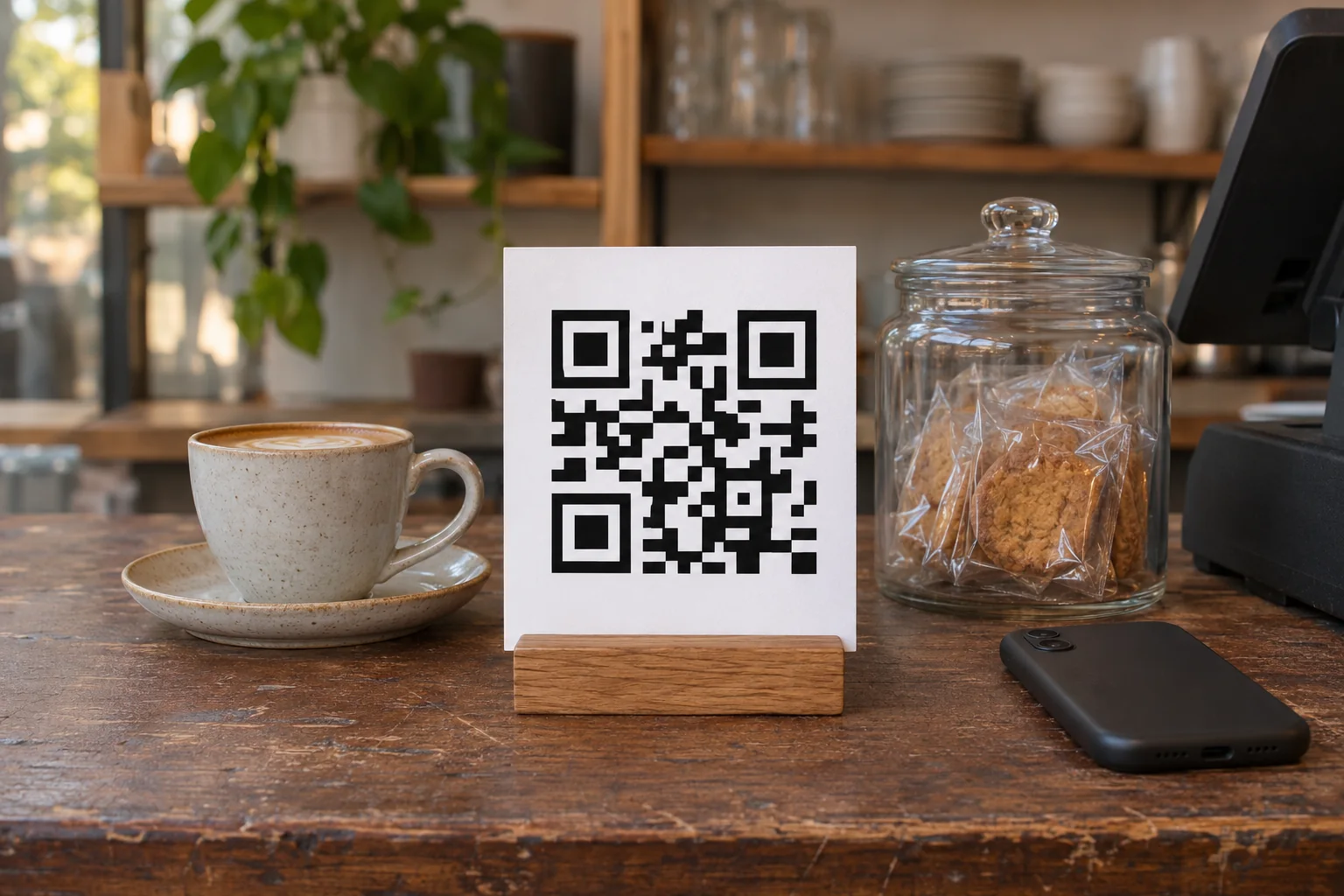
After selecting Read Reviews and Get more reviews, right-click the QR code and select Save image as... to download it.1 Save it with a clear file name so whoever designs your receipts, signs or cards can find it.
How do you check the link opens the right listing?
Test it before you send it to anyone. Open the link on your own phone and check it shows the right business. If it opens the wrong one, copy the link again while signed in to the profile that manages the right business. If you run more than one location, test each location's link separately.
Scan the saved QR code with your phone camera as well. A printed code is harder to replace than a link in an email, so confirm it works before you print a batch.
Can't find Get more reviews on your profile?
If you can see the listing but can't edit it, you are probably signed into the wrong account. Check that first, so you don't create a duplicate profile.
To see who has access, open the profile settings and choose People and access. Current users and pending invitations appear there. If your account isn't one of them, ask the profile's owner to invite you. The owner can invite another Google account as an owner or manager.
If nobody has claimed the profile, you can claim it yourself. Google's steps are to open Google Maps on your computer and search for your business's name and city. Then select Claim this business and Manage now, choose a verification option and follow the on-screen instructions.5 If someone else has already verified the profile and you're authorised to manage the business, Google lets you request ownership from the current profile owner.5
Where should you share your Google review link?
Google suggests four places to encourage customers to use the link or QR code:1
- On your receipts
- In thank-you emails
- At the end of a chat
- As a printed QR code in your store
Google adds that you can also send review requests through email, WhatsApp message or a Facebook post.1 Pick the channel your customers already use with you. For a tradie that might be the text message sent when the job is finished. For a clinic it might be the follow-up email after an appointment.
What do customers need to leave a review?
A Google Account. Customers must be signed into a Google Account to leave a review and they can set one up with a non-Gmail email address.2 Let customers know this in your message if many of them don't use Gmail.
If a customer says the review wouldn't post, the phone may be the issue. Google says customers who use older phones or software might have trouble when they try to leave reviews and recommends they update their Maps app to the latest version.3
What does Google allow when you send the link?
Send it to every genuine customer and keep the request neutral. Google allows businesses to solicit or encourage reviews that represent a genuine experience, without offering incentives or attempting to influence the rating or the contents of the review.4 Three of its rules apply to anyone sending a review link:4
- Don't offer incentives such as payment, discounts or free goods or services in exchange for a review
- Don't selectively solicit positive reviews from customers
- Don't require or pressure customers to leave reviews while on the premises
A QR code on your counter is fine under that last rule, because customers choose whether to scan it. Hovering beside a customer until they post a review is not. For more on asking for reviews, read our guide on how to get more Google reviews.
What should you do next?
Add your Google review link to the message or receipt every customer already gets from you. Our Google Business Profile management sits within our SEO plans. Every SEO plan includes review reply drafts and a review request kit.
Good questions
Common questions Clear answers
How do I get my Google review link?
Open your Business Profile on a computer while signed into the Google account that manages it. Select Read Reviews, then Get more reviews. From there Google says you can share the link or QR code directly. Select Copy to copy the link, then paste it into a message to yourself and open it on your phone to check it reaches your business.
How do I get a Google review QR code?
Use a computer browser, because Google says review QR codes can currently only be generated there and not on mobile devices. Open your Business Profile, select Read Reviews and then Get more reviews. Right-click the QR code and select Save image as to download it. You can then print it or add it to a receipt.
How do customers leave a Google review from the link?
They open the link or scan the QR code with their phone camera and write their review. Customers must be signed into a Google Account to leave a review. They don't need Gmail, because they can set up a Google Account with a non-Gmail email address. Customers on older phones may need to update the Maps app first.
Why can't I see Get more reviews on my Business Profile?
Check the account you are signed into first. Only accounts with access to the profile see its management options. Open the profile settings and choose People and access to see who has access. If your account isn't listed, ask the owner of the profile to invite you rather than creating a second listing for the same business. If nobody has claimed the profile, Google lets you claim it in Google Maps with Claim this business.
Can I send my Google review link to every customer?
Yes. Google allows businesses to ask for genuine reviews without offering incentives or trying to influence the rating or wording. It bans discouraging negative reviews and asking only customers you expect to be positive, so send the same request to every customer at the same point.
Sources
- Create a Google link or QR code to request reviewsGoogle Business Profile Help. Accessed .
- Tips to get more reviewsGoogle Business Profile Help. Accessed .
- About missing or delayed reviewsGoogle Business Profile Help. Accessed .
- Prohibited & restricted contentMaps User Generated Content Policy Help. Accessed .
- Add or claim your Business ProfileGoogle Business Profile Help. Accessed .